Coleo guide
Kids' Activity Payment Tracker for Android: Coleo Records and Reminders
Check Coleo's Google Play availability, set up a child-related cost, review Android notification permissions, and distinguish recorded payments from bank settlement.
Coleo has an official Android listing on Google Play. For a useful first setup, add one child and one confirmed school or activity cost, then check both Coleo's reminder setting and Android's notification permission. Recording a payment in the app does not send money or verify that a provider received it.
- Use the official Google Play listing and check your device's availability.
- Enter the real billing date, not the day you downloaded the app.
- Check notification permission as well as the in-app toggle.
The Android listing was checked for this editorial revision. Its existence is not a test of installation on every device or in every country. The article image is Google Play preview artwork with demonstration data, not a newly captured Android session or evidence of notification delivery.
Start with a confirmed monthly record
On Google Play, check the app name and developer, then review the current compatibility, purchase terms, and Data safety information. A download-page click is only navigation; installation and opening the app are separate steps on your device.
In Coleo, add the child and the relevant school or activity. For a monthly activity, enter its provider, schedule, amount, and charge day from the provider's information. Keep enrollment and payment evidence outside assumptions: a recurring record does not prove a place is confirmed or a bank payment has completed.
Check Android notification controls
In Coleo Settings, find the reminders section and enable the relevant tuition/payment reminder option. The inspected Android implementation requests notification permission and checks whether notifications are enabled. If the app shows a blocked-notifications warning, use its permission/settings action and review the system setting.
Android also lets you manage an app's notifications from system Settings. Names and paths vary by version and manufacturer; Google's notification guide gives the general route. Confirm Coleo is allowed to notify, and consider lock-screen visibility if notifications could reveal family details. This does not guarantee delivery at an exact time.
Example: a fee record and a permission check
This fictitious example uses Leo's USD 60 monthly art fee, due on the 12th in the family's local calendar. It is an editorial checklist, not a record from the artwork or a completed device test.
If no reminder appears, check the due record and both settings again rather than interpreting silence as paid status. Keep a manual calendar check for an important deadline. Coleo does not monitor a bank account or import the school's payment result.
| Check | Example information | What remains to verify |
|---|---|---|
| Activity cost | Art; USD 60 monthly; charge day 12 | Matches provider notice |
| Coleo reminders | Relevant payment reminder enabled | Check installed app setting |
| Android permission | Notifications allowed | Review system setting on this device |
| Payment task | Fee still due | Pay through provider's approved channel |
| Family record after payment | Actual date and receipt reference added | Provider allocation confirmed separately |
Inside the app
Coleo's Android source supports local reminders, family activity records, expense notes, and receipt images. The Google Play preview demonstrates app presentation only; the precise installed version, notification delivery, and device behavior still need checking on the reader's phone.
Free download with optional in-app purchases. See your store for current prices, subscriptions and terms.
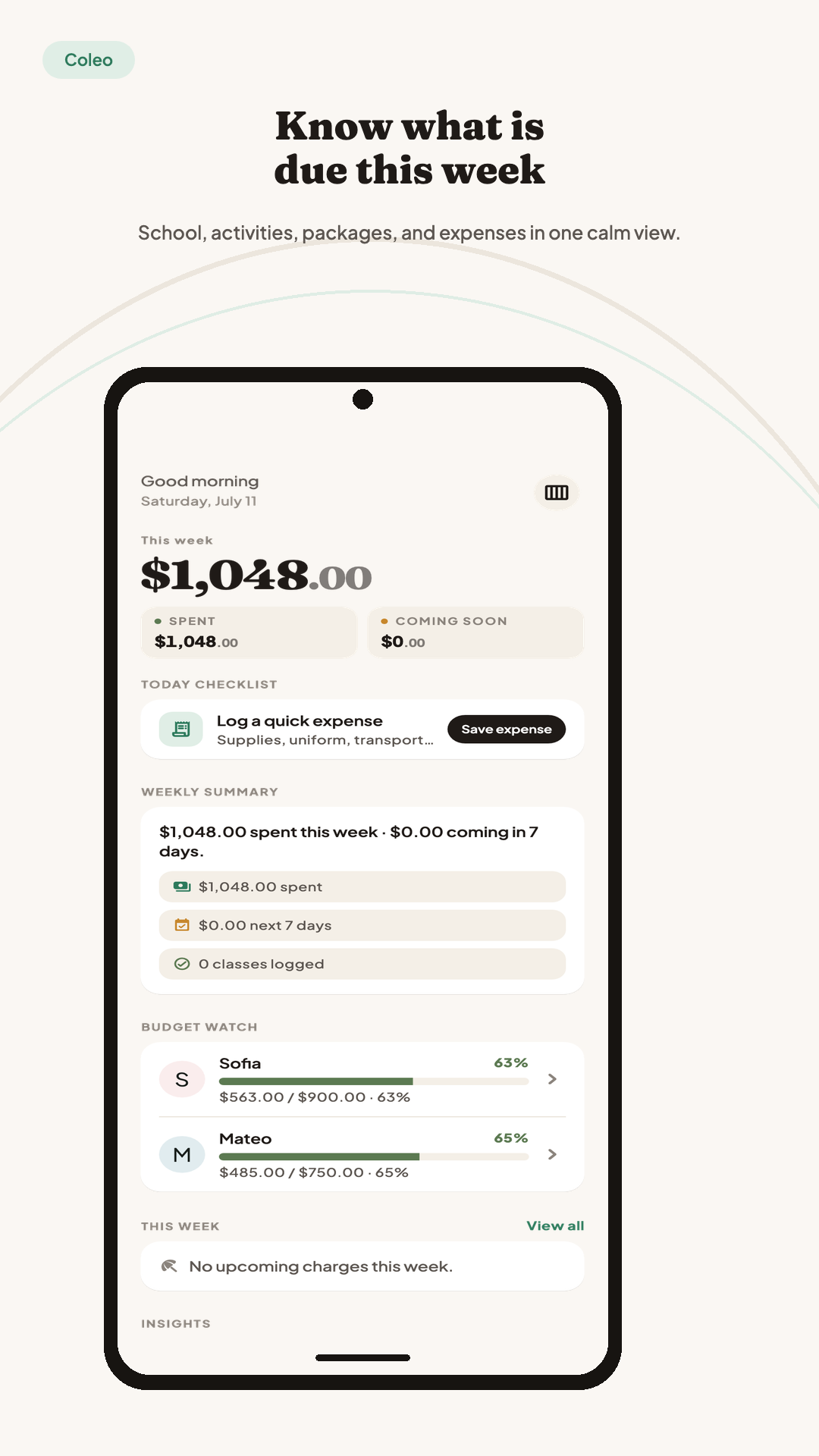
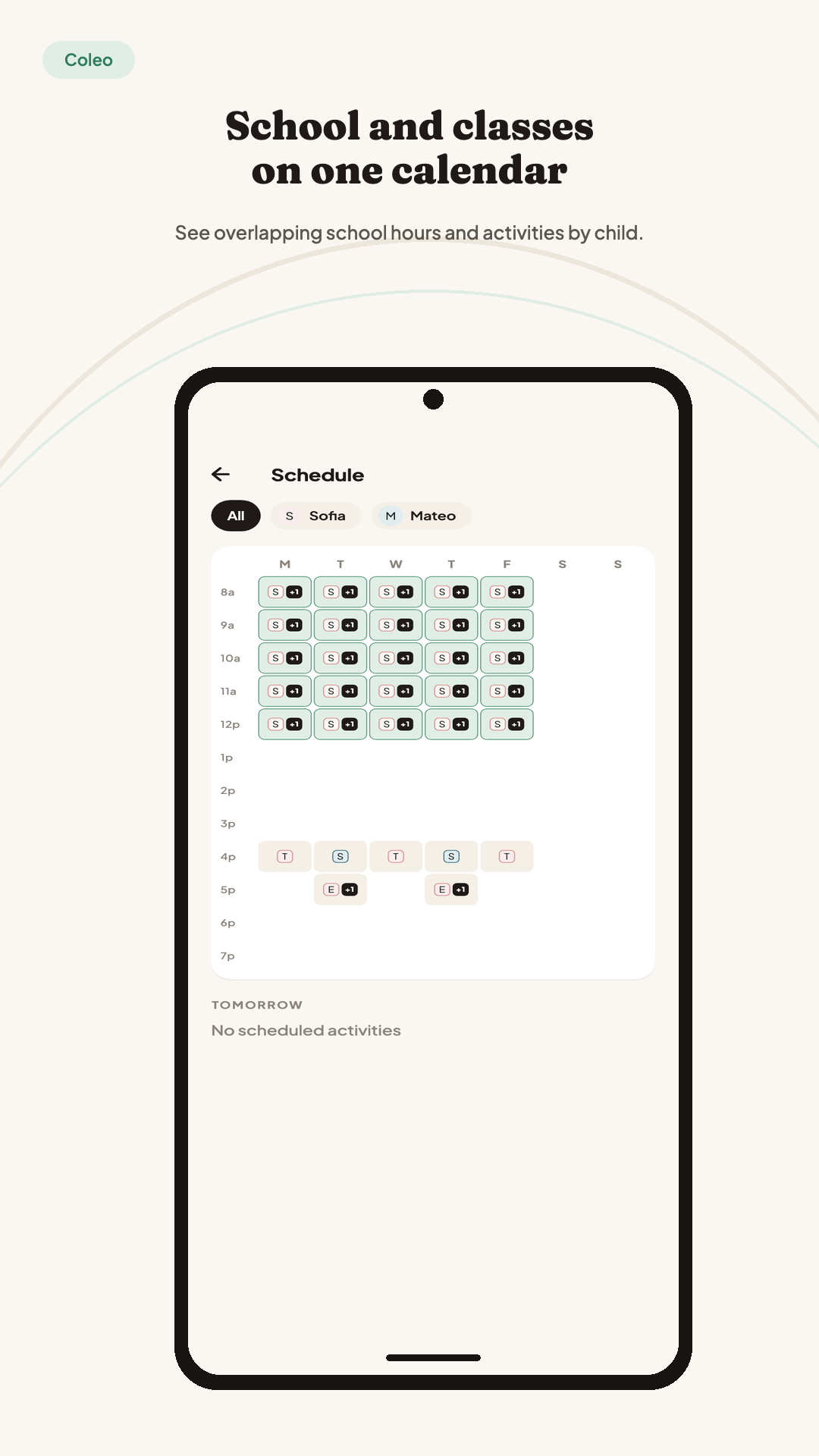
A successful setup means you can reopen the correct child, explain the amount and due date, and understand the notification settings. A store visit or promotional image alone does not establish any of those outcomes.
FAQ
Common questions
An official Google Play listing is available for Coleo: Kids Expense Tracker by Gaia Super Labs. Check that listing on your device for local availability and compatibility; opening the link does not establish that installation succeeded.
The relevant app reminder setting and Android notification permission both need checking. Android settings and device behavior can affect delivery. Consult the app manually for important deadlines rather than relying on one notification.
No. It is Coleo Google Play preview artwork using demonstration data. It illustrates the product and is not a fresh runtime capture or proof that a reminder was delivered.
