
Peptiva guide
GLP-1 Appointment Report: Prepare and Review a Peptiva Export
Prepare a focused appointment summary, use Peptiva's verified PDF or CSV export options, and review the period and sensitive information before sharing.
Educational only. Not medical advice.
Prepare a short question list, select a relevant report period and inspect the export before sharing it. Keep the exact prescribed product information available alongside the report. A useful appointment summary makes your questions easier to locate; it does not ask an app to interpret symptoms or decide treatment.
- Check the period and units printed in the report.
- Keep uncertain events and missing observations visible.
- Review sensitive content and confirm the recipient before sharing.
MedlinePlus encourages discussion of medication questions with your doctor or pharmacist. The report is supporting material for that conversation. Do not wait for a scheduled visit or a working export if a concern needs prompt attention. You can explain the important facts without completing a file first.
Write the first-page handoff before exporting
Use a separate note for your priorities; do not assume a generated PDF will include every journal entry or your complete question list. Identify the period you want to discuss and say where the record is incomplete. Keep product packaging or the current prescription available to verify medication details.
The example is an appointment cover note, not a recreation of Peptiva's PDF layout. It shows how to give a clinician context without turning a personal observation into a medical finding.
| Item | Example wording |
|---|---|
| Purpose | September 5 visit; discuss August symptom entries and one uncertain event |
| Product information | Current prescription brought separately for verification |
| Record limits | Daily notes absent August 17-20; August 18 event not confirmed |
| Observation | Nausea recorded August 9 and 23; original episode notes attached |
| First question | Which details would help you assess these episodes? |
| Second question | How should I document the unresolved August 18 event? |
Choose the actual export route and period
In the reviewed Peptiva app, open Settings, then Export Data. Choose PDF Report or CSV Data and either Last 7 days or All time. Select whether to include dose history, weight entries and symptoms. PDF also offers an optional progress-photo selection. General export requires premium access in the reviewed code.
For a period summary, open Analytics and its Clinical report action. That separate screen offers 30, 60 or 90 days, a preview and Generate & Share PDF. Check the entitlement message in your installed version. Neither route is a custom calendar-month date picker; read the actual range before sending it.
PDF is the readable handoff; CSV is useful for inspecting tabular data. Save the generated file to a destination you control for review before forwarding it. Add separate context if the available period is broader than the question you need to discuss.
Inspect the file and agree on the handoff
Open the output and check names, dates, weight units, medication records and any photos you selected. Compare a few rows with the original entries. A summary count may conceal a gap or an uncertain event, so keep the cover note with the report. Check whether important notes were omitted or shortened.
Use a sharing channel agreed with the clinic and confirm the address or portal destination. Sending a file through the phone's share sheet does not establish that a clinician received or reviewed it. Keep a note of when and how you sent it, and bring the original records if requested.
Inside the app
Peptiva generates personal PDF and CSV outputs through the routes described here. Labels and access can differ by installed version. Even where the interface says Clinical report, the file is self-reported tracking information, not an official healthcare record or clinical assessment.
Free download with optional in-app purchases. See your store for current prices, subscriptions and terms.
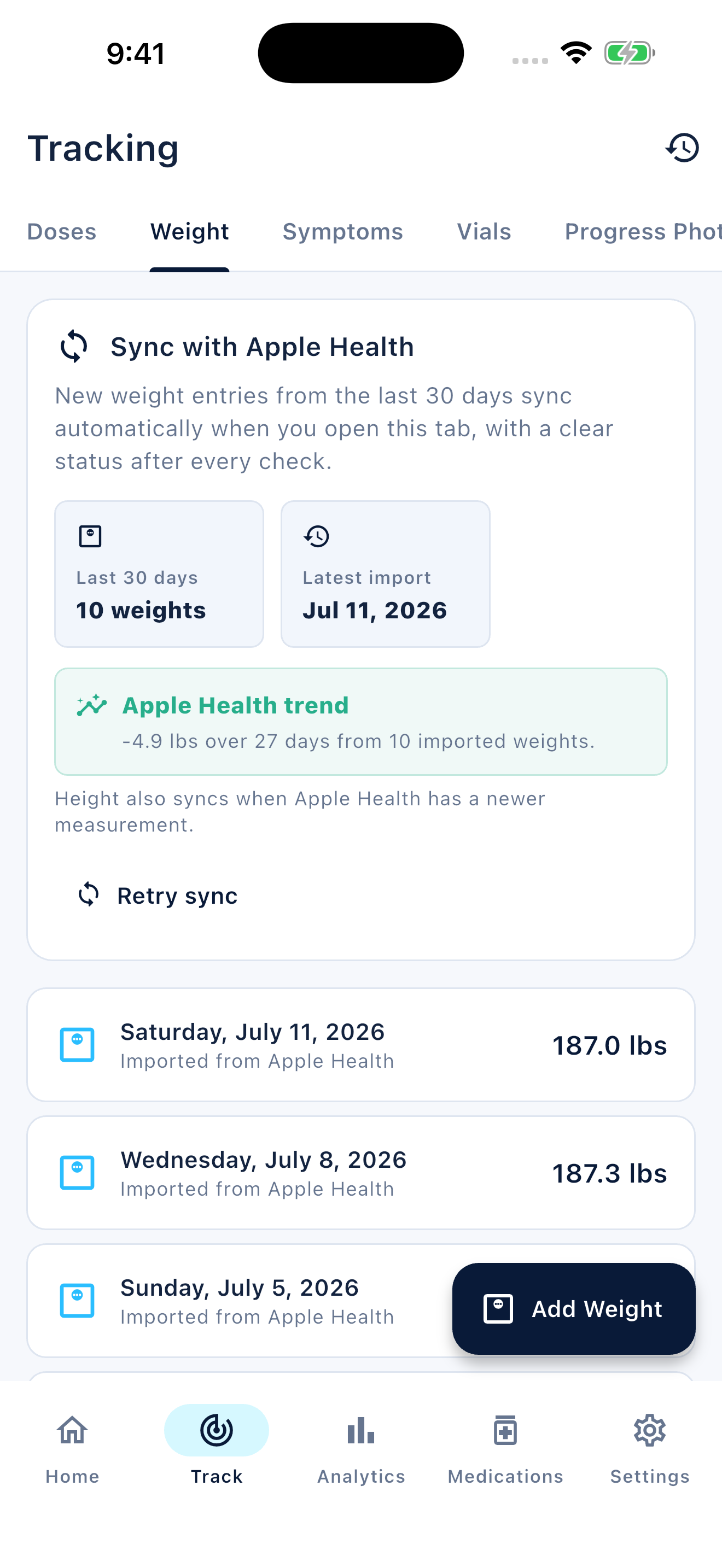
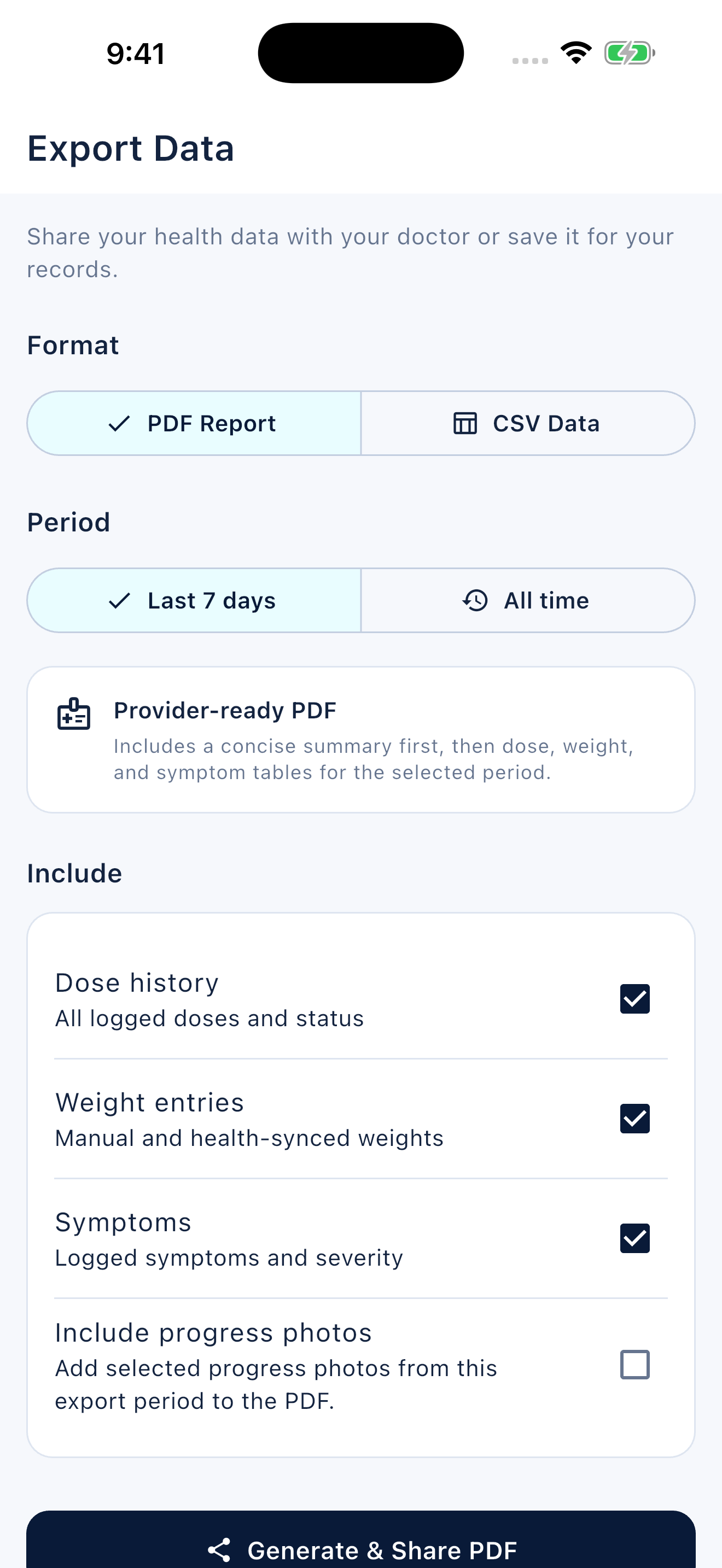
Lead with two useful questions, check what the export actually contains and share deliberately. A file is preparation for care, not delivery of care.
FAQ
Common questions
The reviewed Export Data screen offers Last 7 days or All time. The separate Clinical report offers rolling 30-, 60- or 90-day periods. These are not an arbitrary start-and-end date picker.
No. It summarizes personal tracking data. The clinician decides how to use it, and exporting does not add it automatically to your healthcare record.
Access depends on the report route and entitlement shown in your installed app. The reviewed general export is a premium feature; check the app before relying on a particular export for an appointment.
