
Coleo guide
Back-to-School Expense Planner: Estimates, Confirmed Fees, and Payments
Build a school-start budget by child with estimated costs, confirmed fees, paid amounts, shared purchases, and locally relevant deadlines.
Make a school-start list for each child with three separate amounts: estimated, confirmed, and paid. Add the provider's deadline and the next action. Base timing on the local school calendar, whether the new term begins early in the year, later in the year, or on another schedule.
- Collect current school requirements before shopping.
- Keep shared purchases in the family total only once.
- Record the payment evidence separately from the original estimate.
This is a setup budget for the weeks around school opening, not a complete household budget. The CFPB spending tracker is a useful companion for recording actual spending; the example below adds school-specific planning columns. All names and amounts are fictitious.
Turn school messages into specific purchase decisions
Begin with the enrollment notice, supply list, transport information, and uniform requirements for the correct year and grade. Give each item a source reference, such as the school's supply email, so an older list does not become an accidental requirement.
Separate what must be ready on the first day from what can wait. A required book with an unconfirmed price needs a question to the school; an optional club with no enrollment decision belongs outside the committed total. Check existing supplies before treating every line as a new purchase.
Example: two children and one shared purchase
In this fictitious USD example, Week 0 means the reader's first school week. A dash means not yet known or not yet applicable, not a zero-cost item. Paid amounts are supported by a receipt or provider confirmation.
- Original estimates total USD 375.
- Confirmed costs total USD 264; USD 144 has been paid.
- USD 120 is confirmed but unpaid; books remain an estimated USD 95.
- The current planning total is USD 359: confirmed USD 264 plus estimated USD 95.
| Child and item | Estimate | Confirmed | Paid | Timing and next action |
|---|---|---|---|---|
| Maya: supplies | 60 | 54 | 54 | Week -2; receipt filed |
| Maya: enrollment | 120 | 120 | 0 | Week -1; payment due |
| Leo: uniform | 80 | 72 | 72 | Week -2; purchased |
| Leo: books | 95 | Not confirmed | 0 | Before Week 0; ask school |
| Family: shared stationery | 20 | 18 | 18 | Week -2; count once |
Close the open questions without rewriting history
When the book price arrives, replace the open estimate in the current plan but retain the original estimate for comparison. When enrollment is paid, add the actual payment date and reference; do not add another USD 120 to the committed cost.
Review shared items with the same counting rule next time. You can allocate portions to children for reporting, but those portions must replace, not supplement, the shared total. The record explains needs and timing, not whether spending is equally distributed between children.
Inside the app
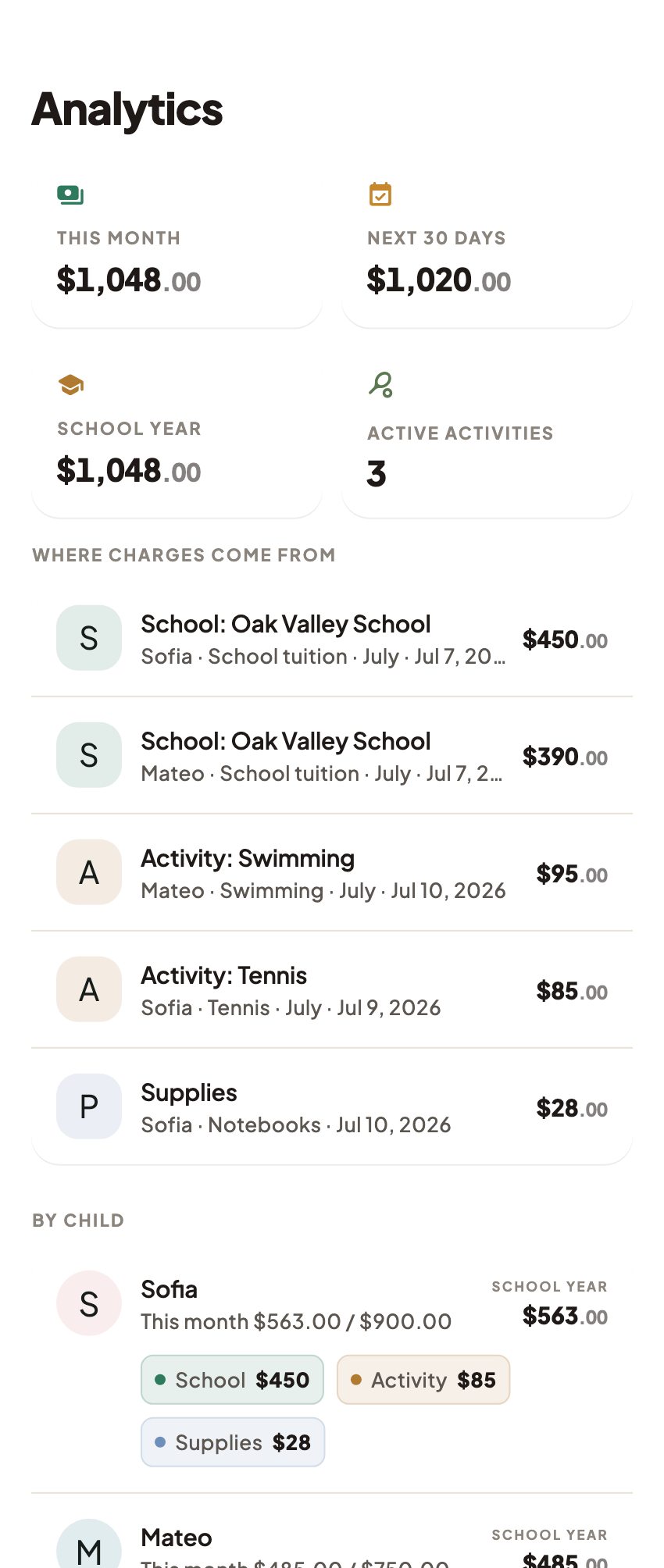
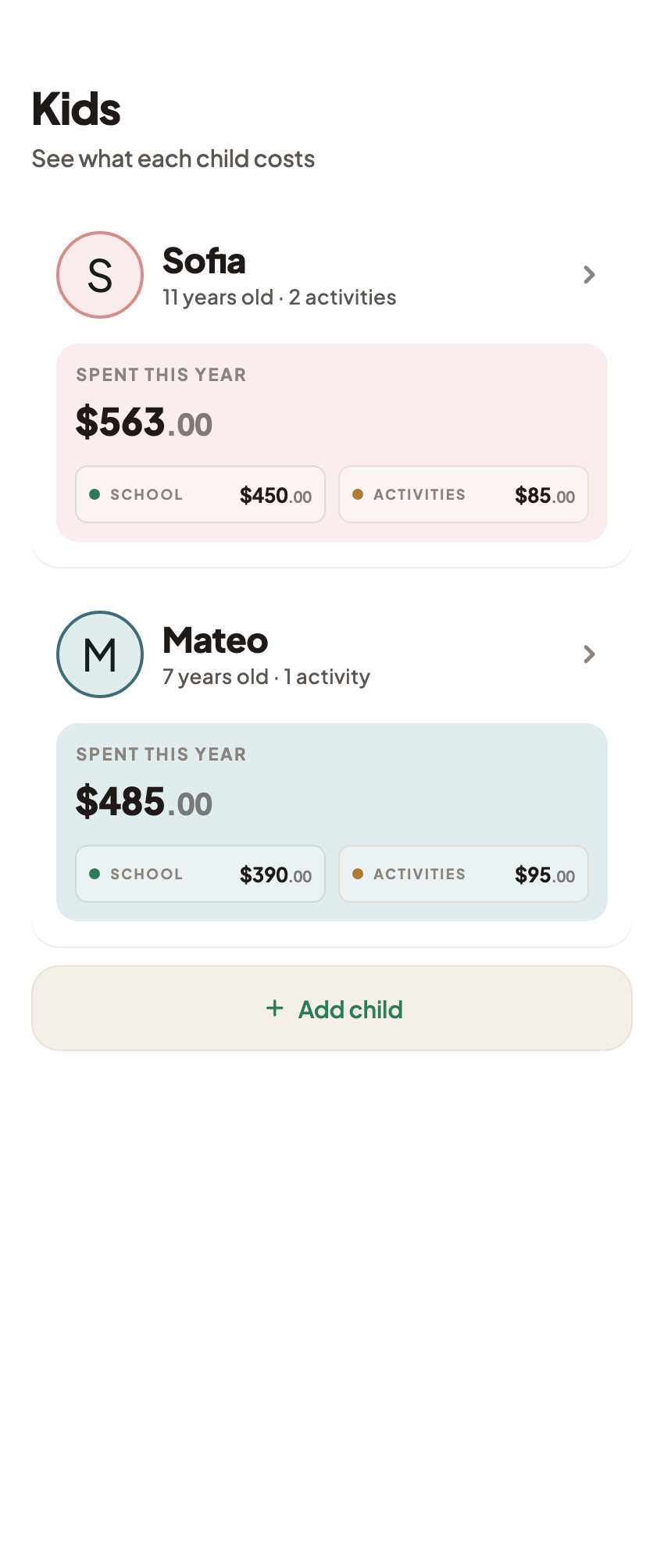
Coleo can hold actual school and expense records by child, including expense notes and receipt photos. Keep unpurchased estimates in the planning worksheet instead of entering them as completed expenses. School confirmations and deadlines still come from the school.
Free download with optional in-app purchases. See your store for current prices, subscriptions and terms.
Finish with a short action list: pay the confirmed enrollment fee, obtain the book quote, and check the first-week requirements. A useful school-start budget makes uncertainty visible instead of disguising it as paid spending.
FAQ
Common questions
Use your school's actual first day and payment deadlines. Start when requirements arrive, then review before purchasing and again after the first school week.
No. Keep estimates in a planning column and confirmed payments in a separate column. An unknown price is not zero, and a confirmed fee is not necessarily paid.
Coleo records children, schools, expenses, and receipt photos. The example's estimate and confirmation columns are a planning worksheet, not a promise of matching app controls.
